1. Linux Basics for Ubuntu
Linux fundamentals you need before starting with ROS
Summary
Estimated time to completion: 0.5 hours
What will you learn with this unit?
- What is a terminal
- What is the Bash Shell
- Filesystem Commands
- Getting Help
- Scripting
- Piping and Grabbing
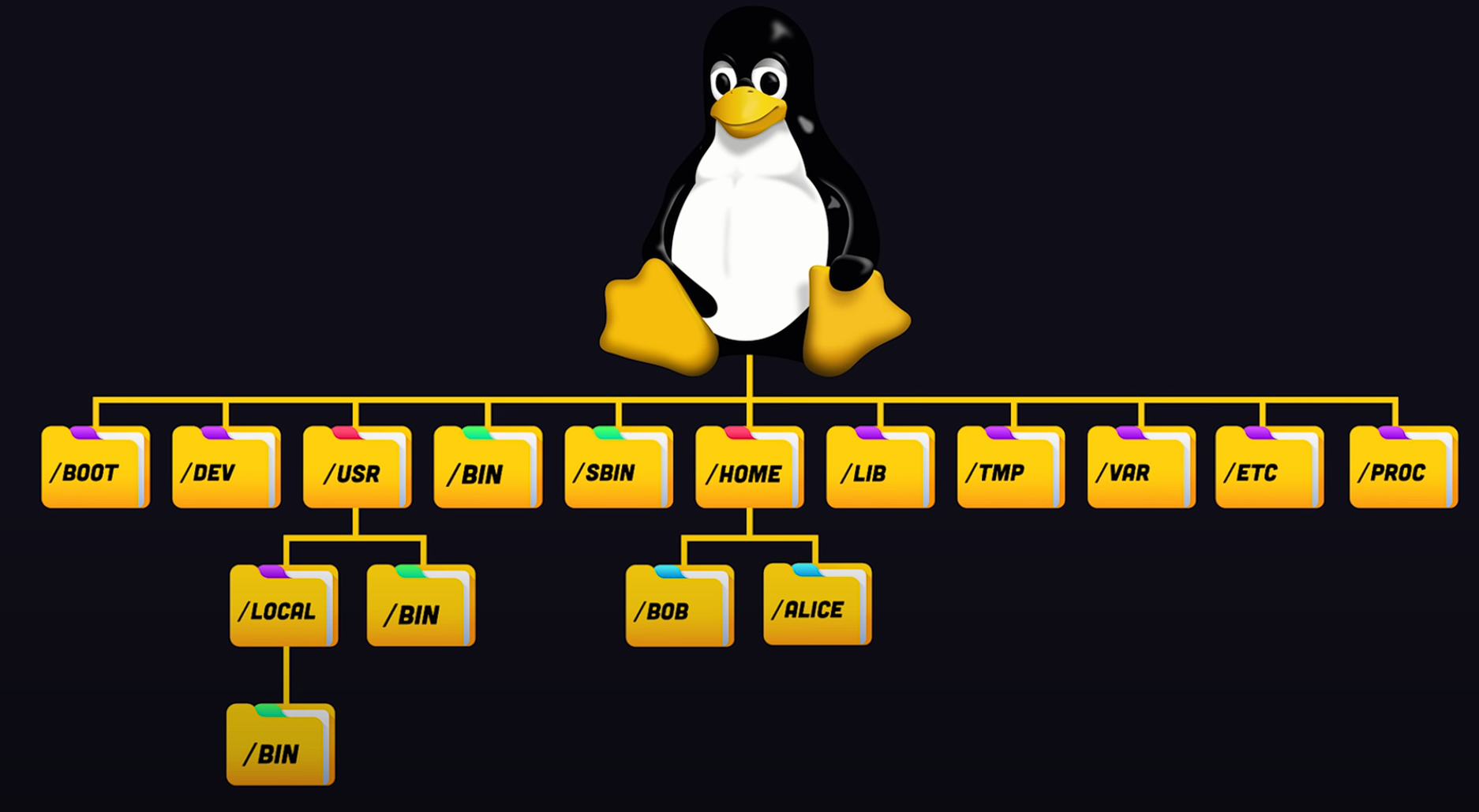
The Linux File System
-
/: The root directory, the highest level of the file system where all files and directories are stored. -
/bin: Contains binary executables (e.g.,cat,mkdir,ls). Named for BINaries. -
/boot: Stores files necessary for booting the system. Avoid modifying this directory. -
/dev: Contains device files for connected hardware (e.g., USBs, hard drives). -
/etc: Holds configuration files (e.g.,/etc/shadow,/etc/passwd). Exercise caution here. -
/home: User directories (e.g.,/Downloads,/Documents). The root user has a separate home. -
/lib: Contains application libraries. Managed by the package manager; do not alter. -
/media: Temporary mount points for removable media (e.g., USB drives). -
/mnt: Legacy directory for mounting devices, mainly unused now. -
/opt: Stores third-party software packages not installed via the package manager. -
/proc: Contains information about running processes and system resources (CPU, RAM). -
/root: Home directory for the root account, structured differently from standard user directories. -
/run: Holds temporary files using RAM; files disappear after a reboot. -
/sbin: Similar to/bin, but contains binaries for system administration. -
/sys: Contains information about devices and drivers, managed automatically. -
/srv: Holds data for services specific to the distribution, also managed automatically. -
/tmp: Stores temporary files created by users and applications; deleted on reboot. -
/usr: Contains shared libraries, binaries, and documentation for installed programs. -
/var: Contains variable files that change frequently (e.g., log files, spool files).
Basic terminal interaction:
The terminal - also called shell or console - is a tool that allows you to issue commands to the computer. Under Ubuntu, for example in Linux, you open the terminal with the key combination [Ctrl] + [Alt] + [t].
The following cell contains an example code, if you encounter a cell that is formatted as below you can execute it by entering the commands in a terminal:
The first imortant command is cd to change directory. This is a way of navigating through folders like in the file explorer.
Navigate to folder /tmp.
cd /tmpNavigate one folder back by combining cd with ...
cd ..To list the folders in the current directory use ls for list.
lsList the folders more detailed with ls -la. The -la flag stands for list all and long format. Or use ll as a shortcut.
ls -laor
llNavigate to the home directory with cd ~ or just cd.
cdor ~ means home directory.
cd ~Print text on terminal with echo.
echo "You are a wizard, Harry!"Terminal Shortcuts
-
Kill Running Command: Press the following keys inside the corresponding terminal:
[Ctrl] + [C] -
Copy Content from Terminal: Press the
[Shift]key while highlighting the content with your left mouse in the corresponding terminal, then to copy press:[Ctrl] + [Shift] + [C] -
Paste Content to Terminal: Press the following keys inside the corresponding terminal:
[Ctrl] + [Shift] + [V] -
Halting Current Shell: Press the following keys to halt the current terminal:
[Ctrl] + [S] -
Continue Current Shell: Press the following keys to continue the current terminal:
[Ctrl] + [Q] -
Open New Tab: To open a new tab in the current terminal:
[Ctrl] + [Alt] + [T] -
Kill Current Terminal: To destroy the terminal (the command line must be empty):
[Ctrl] + [D]
The Bash Shell
Do not despair if you have no idea how to master the dark arts of the linux shell. This notebook will teach you all the spells needed to get started.
Shell: As we already know, the terminal is aka. shell. Using the shell, you can send commands to interact with your computer and hence receive and store data, process information, and perform various other simple or complex tasks.
Let's try some commands in our shell:
- Let's print the current date and time:
dateSat 14 Sep 2024 01:35:12 PM CEST- Try to display the calendar of the current month:
cal September 2024
Su Mo Tu We Th Fr Sa
1 2 3 4 5 6 7
8 9 10 11 12 13 14
15 16 17 18 19 20 21
22 23 24 25 26 27 28
29 30- Print the current working directory:
pwd/home/username- Make the terminal print a message in green:
echo -e "\e[32mIt worked\e[0m"output: It worked (displayed in green in the terminal)
So what have we just achieved?
- We entered commands to interact with our computer
- We retrieved data (date, cal, pwd)
Bash Shell
The Bash Shell is the default interpreter on many GNU/Linux systems, thus we have been using it even without even realising. If you worked with Python before you might already have stumbled upon this term. This is why our previous shell commands worked even without us defining bash as an interpreter.
echo "$SHELL"/bin/bashGetting Help
Almost any software or operating system has some kind of built-in help to assist inexperienced users. If we talk about the Ubuntu terminal or Bash, then it also provides us with numerous ways to get help.
Tab completion on the Shell
- First make sure to be in the home directory by typing
cdand pressing enter.
cdCommands can be auto-completed inside the Shell.
- For this, simply type the name of the first characters of the command followed by the tabulator key.
cd [TAB TAB]Now a list of all folders you can change directory cd to will be displayed.
.ros/ .vim/ catkin_ws/- Now try
cd cat[TAB]As you can see, the command is auto-completed which saves you time and prevents typos.
fhtw_user@razerblade:~/catkin_ws$Command options -h --help
Most commands come with argument options which can be passed after the command, -h and --help are two of them.
- Let's try to get help for the
catcommand. Remember withcatyou can look into textbased files.
cat -hAs you can see -h does not work with cat but it suggests that --help does.
cat: invalid option -- 'h'
Try 'cat --help' for more information.- Let's try
--helpwith thecatcommand.
cat --helpHere you can see the help page of the cat command.
Usage: cat [OPTION]... [FILE]...
Concatenate FILE(s) to standard output.

With no FILE, or when FILE is -, read standard input.

  -A, --show-all           equivalent to -vET
  -b, --number-nonblank    number nonempty output lines, overrides -n
  -e                       equivalent to -vE
  -E, --show-ends          display $ at end of each line
  -n, --number             number all output lines
  -s, --squeeze-blank      suppress repeated empty output lines
  -t                       equivalent to -vT
  -T, --show-tabs          display TAB characters as ^I
  -u                       (ignored)
  -v, --show-nonprinting   use ^ and M- notation, except for LFD and TAB
      --help     display this help and exit
      --version  output version information and exit

Examples:
  cat f - g  Output f's contents, then standard input, then g's contents.
  cat        Copy standard input to standard output.

GNU coreutils online help: <https://www.gnu.org/software/coreutils/>
Report cat translation bugs to <https://translationproject.org/team/>
Full documentation at: <https://www.gnu.org/software/coreutils/cat>
or available locally via: info '(coreutils) cat invocation'
Manual Pages
Many commands come with manual pages. You can scroll through those by putting man as a prefix to your command. But in this Docker container is is not available.
man catAnd as our great headmaster Albus Dumbledore stated: "Help will always be given at Hogwarts, Harry, to those who ask for it."
The first point of interest is the public library in the fourth floor.
To acompany you with your search in the public library google please see this cheatsheet that will help you with your search.
Summary
We have learned that:
- With
cdwe can change directories. lslists the files and folders in the current directory.pwdprints the current working directory.echoprints text to the terminal.BASHis a command languge interpreter. The default interpreter for Ubuntu is BASH.- kill a command by pressing
[Ctrl] + [c] SHELLis a macro (command) proccessor which allows for interactive and non-interactive execution.- Getting Help: Most commands come with the possible arguments
-h,--help, and or have aman-page
The Filesystem
The most basic "skill" in linux is navigating through the filesystem. The filesystem contains all the files and folders stored on your computer.
- Files: store data
- Folders: (aka. directories) store files and other folders
| Command | Explanation |
|---|---|
| ls | List files and folders in current directory |
| ls -la | List all (including hidden) files and folders in current directory with their permissions |
cd dir-path | Change directory to dir-path |
| pwd | Print current working directory |
touch file-name | Create or update file-name |
mkdir folder-name | Create folder-name |
cat file-name | Output content of file-name to terminal |
rm file-name | Delete file-name (Files deleted with rm can't be restored) |
rm -rf folder-name | Delete folder-name (Files deleted with rm can't be restored) |
cp file1 file2 | Copy content of file1 to file2 |
mv file1 file2 | Move content of file1 to file2 |
chmod octal file | Change the permission of file to octal, which can be found separately for user, group, other by adding |
The rm command permanently deletes files. Files deleted with rm cannot be restored!
To open a new tab from inside an existing terminal press:
[CTRL] + [SHIFT] + [T]
Bash Commands
Here are some basic Bash commands you can run in a terminal:
cd /tmp: Changes the directory to /tmp.
cd /tmptouch first_file: Creates an empty file named first_file.
touch first_filels: Lists the files and folders in the current directory.
lsYou should now see your created file.
first_filemkdir first-folder: Creates a directory named first-folder.
mkdir first-folderls: Lists the files and folders in the current directory.
lstouch first-folder/second_file: Creates an empty file named second_file inside the first-folder directory.
touch first-folder/second_filels first-folder/: Lists the files inside the first-folder directory.
ls first-folder/second_filerm -rf first-folder first_file: Removes the first-folder directory and the first_file file (files deleted with rm cannot be restored).
rmstands for remove-rfor recursive (delete all files and folders inside the folder)-ffor force (do not ask for confirmation)
rm -rf first-folder first_fileNow when you list the files and folders in the current directory, you should see that the first-folder directory and the first_file file are gone.
lsScripting
Basically you can put any sequence of commands that you enter in a terminal also inside a script file. The complexity of bash scripts ranges from simple folder creation to complex driver installations.
Let's see how that is done in the following example. Please copy the following code in your favorite IDE and create a file named first_script.sh.
Install a text editor of you choice (e.g. nano), or you can make a now file in visual studio code called first_script.sh:
sudo apt-get install nano -yChange to your home directory:
cdMake a new file called first_script.sh and open it with nano:
sudo nano first_script.shHere's an example script (first_script.sh). Copy the following code into the file and save it:
#!/bin/bash

# The first line in any Shell script must be the shebang (#!) followed by the path to the interpreter.
# In our case thats #!/bin/bash

FOLDER_NAME="/tmp/fhtw"     # assign the string /tmp/fhtw to the variable FOLDER_NAME.
                            # Attention variable declaration in BASH allowes no " " (space) between the variable name and the value!

echo "Creating folder $FOLDER_NAME"     # Printing the message 'Creating folder' followed by the variable. Note the "$" infornt of the variable name.
mkdir -p "$FOLDER_NAME"     # Creating a directory using the variable with argument -p (Create intermediate folders if not existent)
echo "Return value of previous command: $?" # All commands return a value. 0 means everything was ok.
cd "$FOLDER_NAME"           # Change directory inside the new folder
echo "Current folder: $(pwd)"           # Print the current working directory. Here we use "(...)" to create a subshell. Subshells can be used to directly process output of commands
cd .. && echo "Current folder: $(pwd)"  # Move one directory up (cd ..) and execute (if first command [cd ..] succeeds) the same as above
cd "$FOLDER_NAME"           # Change directory again
exit 0
ctrl + x to exit

y to save

enter to close

Run Scripts
Two steps are needed to run a script:
Make the script executable (the file name should be green and bold):
sudo chmod +x first_script.shsudomeans that you are executing the command as a super user.chmodis a command to change the file permissions change mode.+xmeans that the file is now executable.
Verify that the file is now executable by typing ls and checking if the file name is green and in some cases also bold.:
ls
Run the script:
bash first_script.shor
./first_script.shCreating folder /tmp/fhtw
Return value of previous command: 0
Current folder: /tmp/fhtw
Current folder: /tmpSummary of the script:
- We created a folder
/tmp/fhtw - We printed the return value of the previous command (0 means everything was ok)
- We printed the current working directory
- We moved one directory up
- We moved back to the folder
/tmp/fhtw
Piping and Grabbing Stuff
In Linux systems, the grep command is used to filter elements. For instance:
hostname -I | grep -oP '(\d{1,3}\.){3}\d{1,3}'Here's what we did:
- We used the
hostname -Icommand to get the IP address of the machine. - We piped (
|) the output of thehostname -Icommand to thegrepcommand. - We used the
-oflag to show only the matching part of the line. - We used the
-Pflag to enable Perl-compatible regular expressions. - We used the regular expression
'(\d{1,3}\.){3}\d{1,3}'to match an IP address.
Grep
Grep lets you search for strings in files. The basic syntax is:
grep "search_string" "file_name"Here we grep ervery line with the word echo.
grep -n "echo" first_script.sh9:echo "Creating folder $FOLDER_NAME" # Printing the message 'Creating folder' followed by the variable. Note the "$" infornt of the variable name.
11:echo "Return value of previous command: $?" # All commands return a value. 0 means everything was ok.
13:echo "Current folder: $(pwd)" # Print the current working directory. Here we use "(...)" to create a subshell. Subshells can be used to directly process output of commands
14:cd .. && echo "Current folder: $(pwd)" # Move one directory up (cd ..) and execute (if first command [cd ..] succeeds) the same as above-n shows line numbers
This does the same.
cat first_script.sh | grep -n "echo"We have learned that we can use grep either:
- by directly looking in a file/ files with grep
- by piping the output of the previous commnand to grep
htop
To moitor the system resources you can use htop. Simply type htop in the terminal and you will see a list of all running processes and the CPU and memory usage.
htop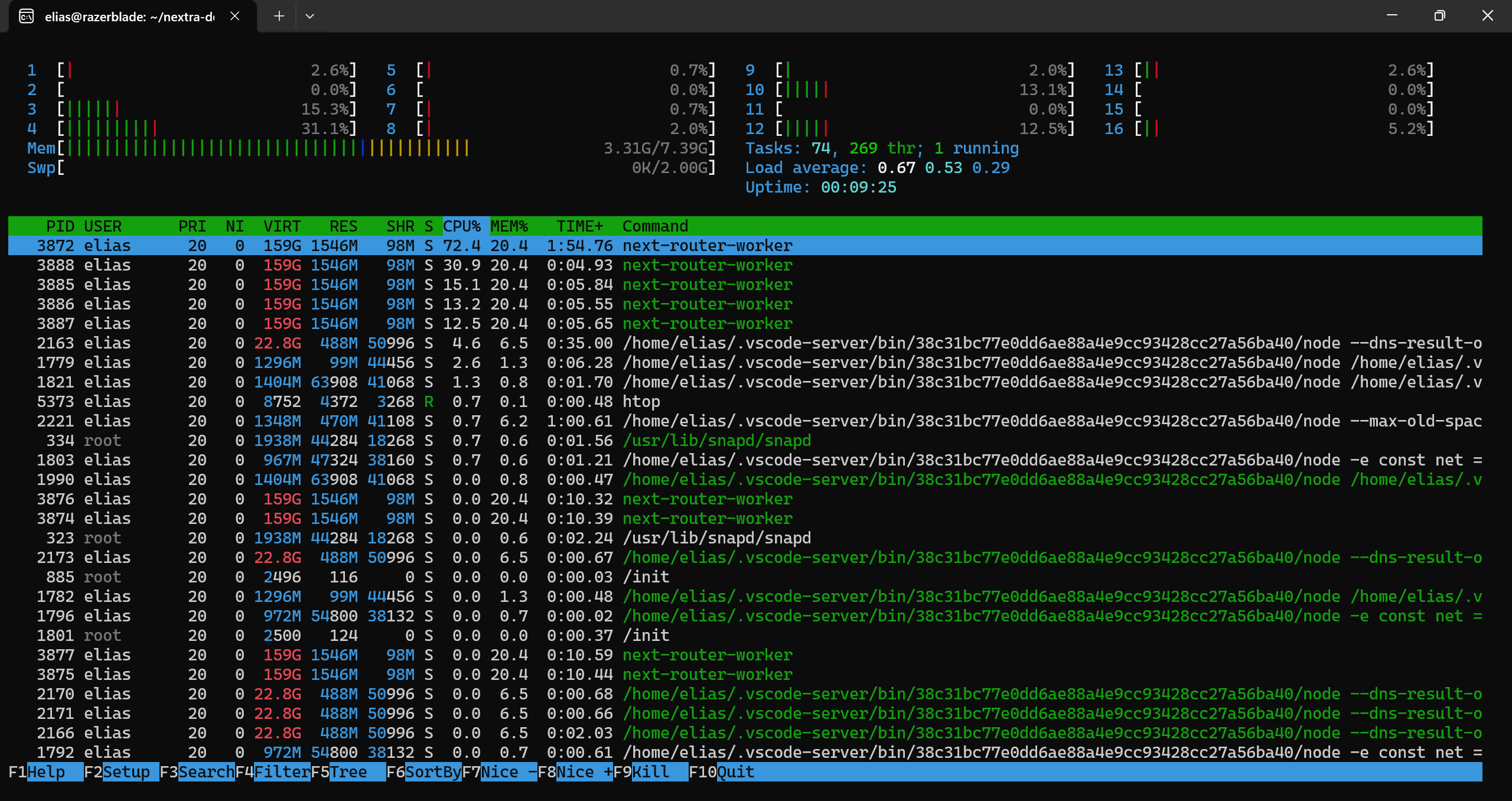
To exit htop press q or like in the terminal to stop any porcess ctrl + c.
We have learned that:
-
BASH is a command language interpreter. The default interpreter for Ubuntu is BASH.
-
SHELL is a macro (command) processor which allows for interactive and non-interactive execution.
-
Getting Help: Most commands come with the possible arguments -h, --help, and/or have a man-page
-
We can use grep either by directly looking in a file/files or by piping the output of the previous command to grep
-
Any command that can be run on the command line may be incorporated into a script
-
We can create variables in scripts
-
Bash scripts must have executable rights
-
We can use variables using the $ operator
-
To use the output of a command as a variable, we must use
MY_VAR="$(<command>)" -
We should return an int between 0 - 254 from our script depending on the final state of our script using exit
-
We can use the
htopcommand to monitor system resources